
How to use Claude to plan your day
How to use Claude to plan your day: give it your fixed events, paste a daily planning prompt that lists your to-dos and habits, and ask for one line per step. Claude puts the list in order, catches conflicts and fits things around events you cannot move. It does not keep you on the plan once it is written.
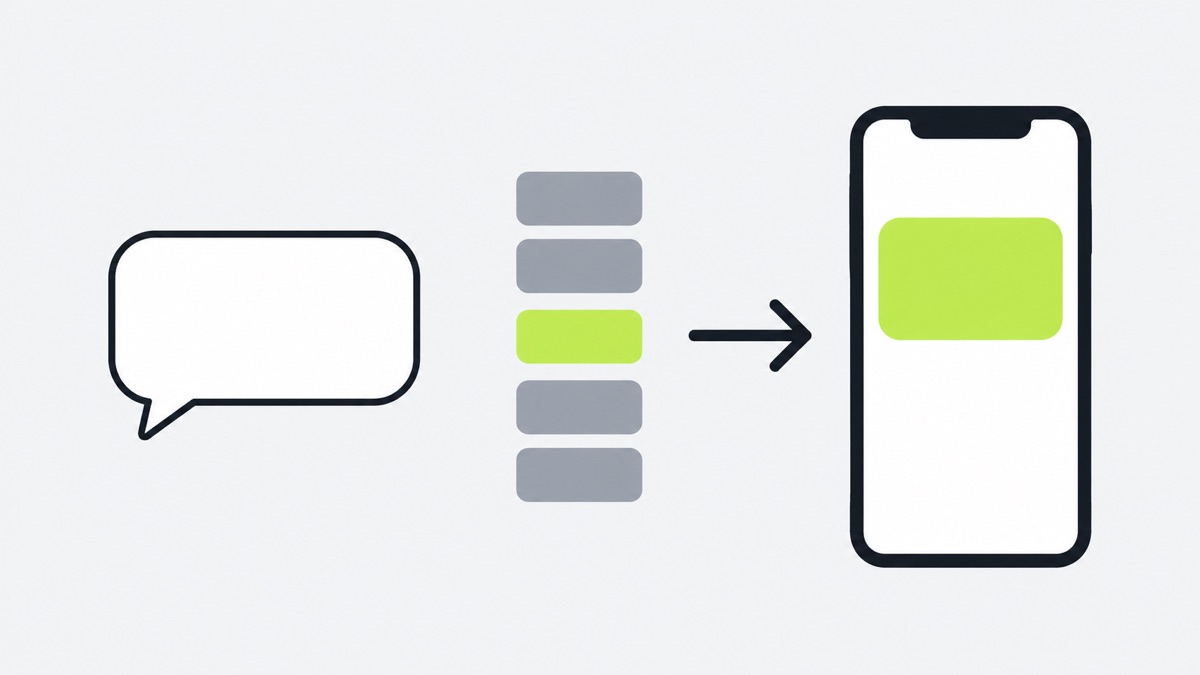
How to use Claude to plan your day in three steps
- Give Claude your calendar. Use the connector, paste tomorrow’s events, or share calendars from the app. How, below.
- Paste a planning prompt. Fill in the brackets with your fixed events, to-dos and habits. The prompt is below.
- Decide where the plan will run. A chat is a good place to make a plan and a poor place to follow one. To have the plan run on your iPhone one card at a time, connect Claude to one-by.one: in Claude, add a custom connector with the server URL
https://mcp.one-by.one/mcpand sign in with your one-by.one account. The steps are on the Connect page, and our guide to adding a custom connector in Claude covers the Free plan’s limit and common errors. Then add one more line at the end of the prompt: “If you have a one-by.one connection, save this plan there, one action per card, and tell me when it is ready.”
Steps 1 and 2 give you a better plan on their own. With the app, step 3 takes a few minutes.
Connect your calendar to Claude so it plans around real events
A day plan is mostly about what is already fixed. There are three ways to give Claude that.
Use Claude’s Google Calendar connector
- In Claude, open Customize, then Connectors.
- Find Google Calendar and select Connect.
- Sign in to Google and grant the permissions.
- In a chat, select + at the lower left of the message box, choose Connectors and turn on Google Calendar.
Then ask ordinary questions such as “what meetings do I have tomorrow?” Anthropic’s connector docs list it for the Pro, Max, Team and Enterprise plans. On Team and Enterprise, an Owner enables it for the organization first. See Anthropic’s Google Calendar page.
Paste your events
On the Free plan, or with a calendar that is not Google, paste tomorrow’s events as plain text: time, title, and any travel. It takes a minute and works with every calendar.
Share calendars from the one-by.one app
If you use one-by.one, your connected AI sees your iPhone calendar only after you turn on calendar sharing in the app and pick the calendars to share. It then gets the next seven days of event titles and times. Until then it sees nothing, so tell it your events in the chat. “Hide event names” sends “Busy” instead of event names, and one-by.one never writes to your calendars.
Whichever route you use, Claude sees what you share. Hide titles you would not want in a chat.
A prompt to plan your day with Claude (copy it)
This is the prompt we would start with. Fill in the brackets once, keep the rest, and paste it each morning or the evening before.
Plan my day for [today / tomorrow].

My day
- Wake up: [7:00]. Done by: [22:30].
- Fixed events: use my calendar if you can see it. Otherwise: [time, event, travel time].
- Things I must do: [task, rough minutes, deadline].
- Habits I want to keep: [for example a 20-minute walk, 10 pages of reading, stretching].
- My energy: [for example I focus best before noon and drop after lunch].

How to plan
1. Start from the fixed events and do not move them.
2. Add travel time before anything away from home, and prep time before anything that needs it, such as getting ready or joining a call.
3. Put the hardest task in my best focus window. Leave about 10 minutes between blocks.
4. Fit the habits into the gaps between events. If one does not fit, drop it for today and tell me. Do not squeeze it in.
5. If something has to wait (laundry, the oven, a download), make the wait its own step and put the next useful thing right after it.
6. If the day is too full, tell me what you would cut and ask before cutting.

Ask me up to three questions first if something important is missing.

Then give the plan as one line per step: start time, short action, minutes.
Four things make it work:
- Say what is fixed. Otherwise Claude will move things around.
- Give rough durations. “Write the report, about 90 minutes” beats “write the report.”
- Let it drop habits. A plan you can finish beats a plan that looks full.
- Re-plan during the day. Reply with what changed: “It is 2:15 and the call ran 40 minutes over. Re-plan the rest of the day.”
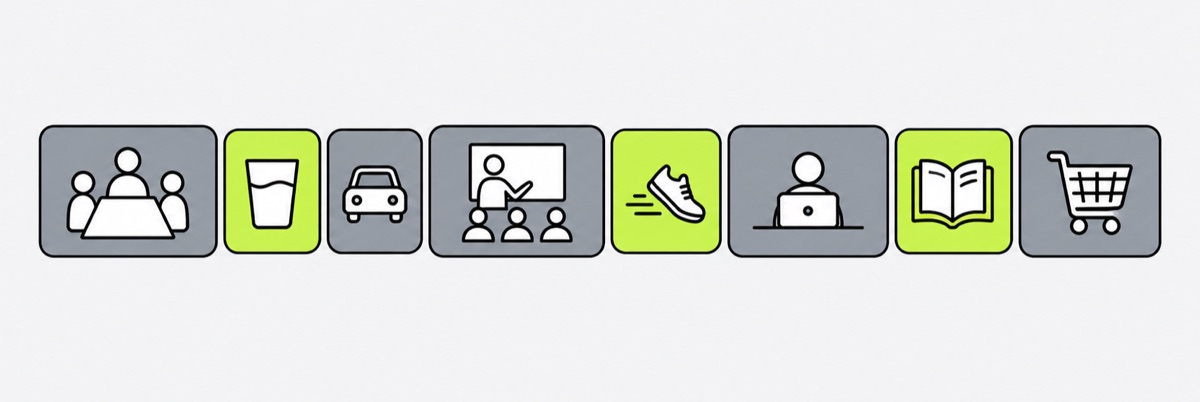
What Claude does well when you plan your day, and where it stops
Give Claude a pile of things to do and a few facts about your day, and it will usually hand back something you could follow. These are the jobs it does well:
- Turning a brain dump into an order. Errands, calls, laundry, a deadline. It sorts them by what has to happen first.
- Spotting conflicts. A 3 PM call and a 3:30 PM pickup across town do not fit together, and it will say so.
- Estimating what you forget. Getting ready, the drive, the ten minutes before a call.
- Fitting habits around fixed events. A walk, stretching or reading goes into the gaps instead of on top of your meetings.
- Re-planning. If the day goes sideways at 2 PM, tell it what happened and ask for the rest of the day again.
It has limits too. It only knows what you tell it or what you have connected, so a plan made without your calendar is a plan made blind. Its time estimates are guesses; treat the first day as a draft and correct them. A plan in a chat is text, and text does not remind you. Claude for iOS can create reminders if you allow it, and paid Claude plans can run scheduled tasks. Even so, a chat is a good place to make a plan and a poor place to run one.
What happens after Claude makes the plan
This is where most plans fall apart, and it is not Claude’s fault. The plan is a block of text in a chat. At 9 AM it is right. By 11 it is behind, and the chat has scrolled away. Unless you set up a reminder or a scheduled task, nothing tells you what is next. Even then, a reminder is one ping. Nothing holds the whole day or notices that the oven timer ended twenty minutes ago and the next step is waiting, and every change means going back to ask again.
A plan needs somewhere to live and something to run it. You have a few options:
- Leave it in the chat. Fine for a light day. You will scroll a lot.
- Copy it into your calendar or a to-do app such as Reminders, Todoist or Things. This works well if you already like those tools. Depending on the app, you copy the plan in by hand or ask Claude to save it for you; Todoist, for one, lets Claude create and update tasks. Either way you end up with a list again, not a day that is being run.
- Write it down. Honestly good for some people.
- Let an app run it. That is what we built one-by.one for.
one-by.one is an iPhone app that plans nothing itself. It never calls an AI model. Your Claude, or ChatGPT, or another assistant that supports MCP, does the planning and saves the day to the app as cards. The app shows one card at a time: Start, Done, Skip or Dismiss, and Undo if you mis-tap. A wait gets a timer, and when it ends the follow-up card comes back, so the pasta is not forgotten. Records show what you did, and widgets, including Lock Screen and StandBy, show the current card without opening the app.
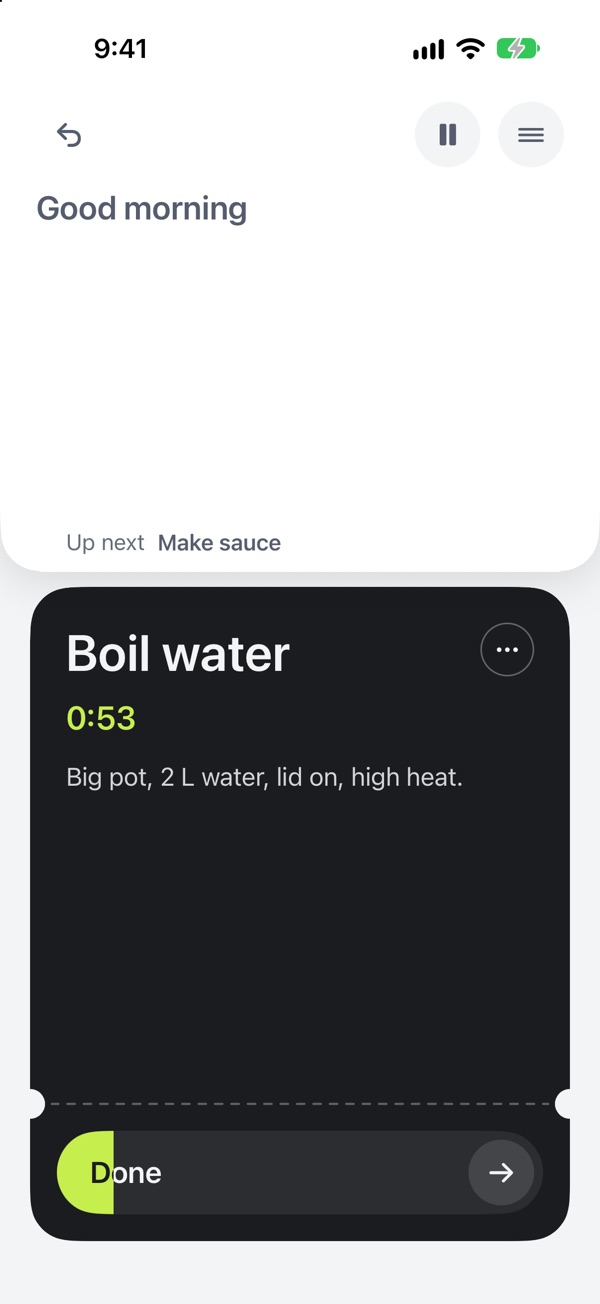
When the day changes, tell Claude and it updates the cards. That is the whole idea: your AI plans, you just do.
It is not for everyone. It is iPhone only, the interface is English only, and it is a paid subscription: US$59.99 a year, with a 14-day free trial for eligible new subscribers, or US$12.99 a month. There is no free tier.